[Setting Up Single Sign-On With AWS SSO on Kibana Cloud]
Analyze with AI
Get AI-powered insights from this Mad Devs tech article:
Updated for 2026
The configuration steps in this article are based on Elastic Cloud deployment version v8.12. The core SAML setup flow remains the same in newer versions, but a few things have changed since publication:
- AWS SSO was officially renamed to AWS IAM Identity Center. The console navigation and terminology differ slightly, but the SAML integration approach described here applies directly.
- AWS IAM Identity Center now supports encrypted SAML assertions, which adds an extra layer of security for authentication responses sent to the service provider. Consider enabling this if your security requirements demand it.
- Session duration management in IAM Identity Center has been extended – you can now configure sessions from 15 minutes up to 90 days, including per-application overrides.
For the latest Elastic Cloud SAML configuration reference, see the official documentation.
The Elastic Stack supports SAML single-sign-on (SSO) in Kibana, using Elasticsearch as a backend service. In SAML terminology, the Elastic Stack is operating as a Service Provider.
The other component needed to enable Elastic Cloud SSO is the Identity Provider – a service that handles credentials and performs user authentication. In this setup, AWS IAM Identity Center fills that role.
This article will describe setting up single sign-on in Kibana (Elastic Cloud), commonly referred to as Kibana SSO, where AWS IAM Identity Center serves as the SAML identity provider.
Elastic Cloud deployment version v8.12.0.
1. We prepare the SAML configuration from the IAM Identity Center.
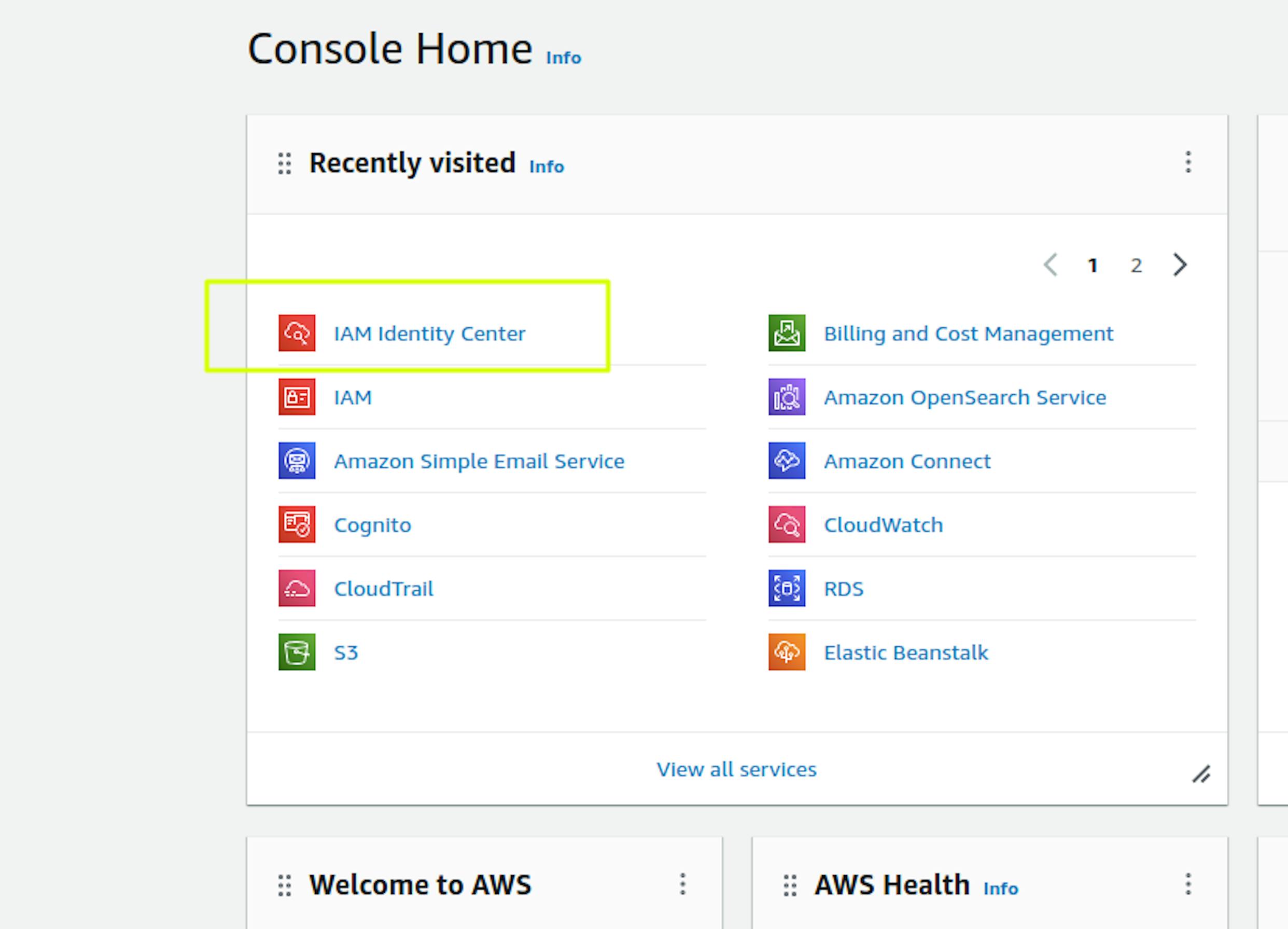
In the AWS console, go to the "IAM Identity Center" section:
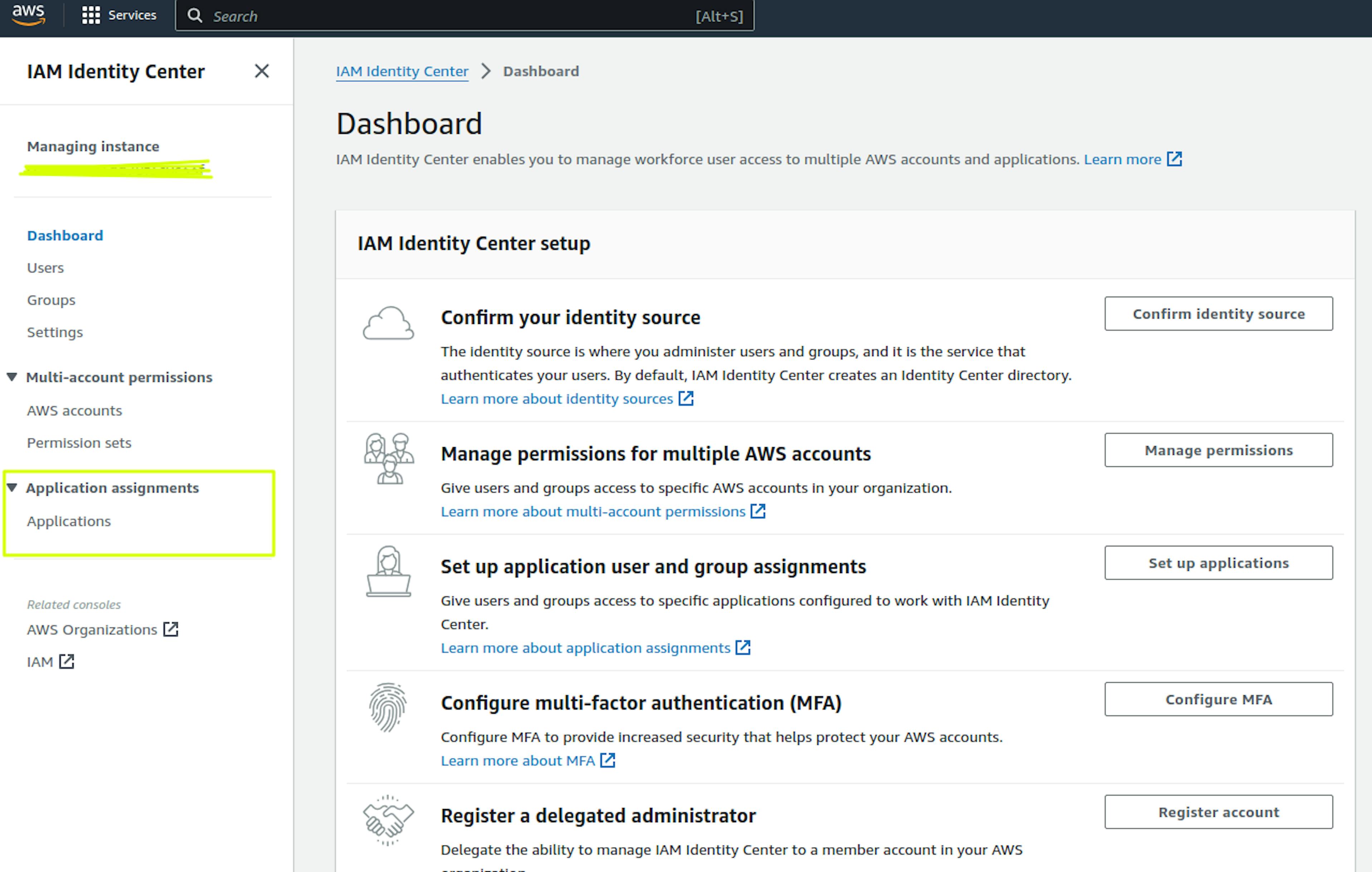
Next, go to the Application assignments section and select Applications:
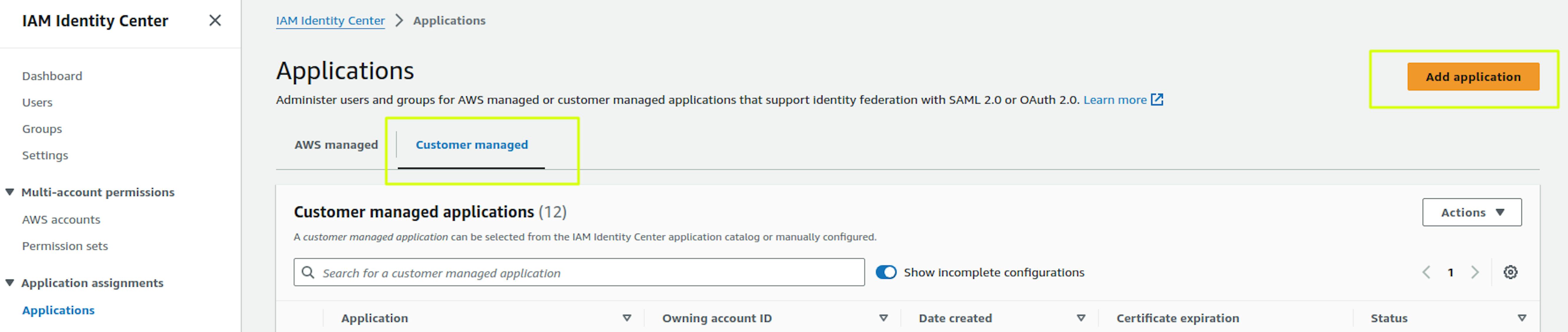
Select "Customer managed" in the "Applications" section and click "Add Application":
Fill in the required fields "Display name" and "Description." The "Display name" will subsequently be displayed in "Applications" when logging into AWS SSO:
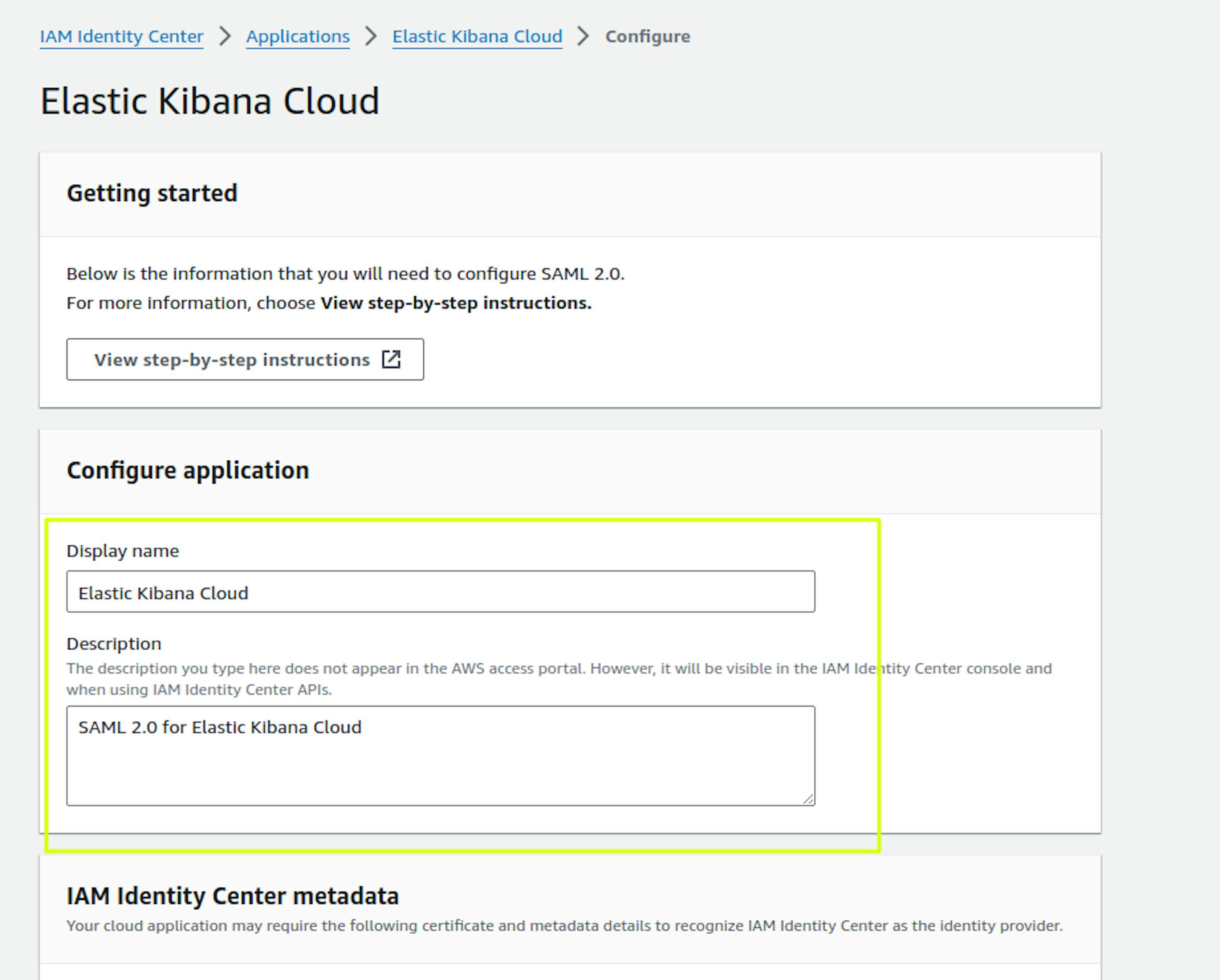
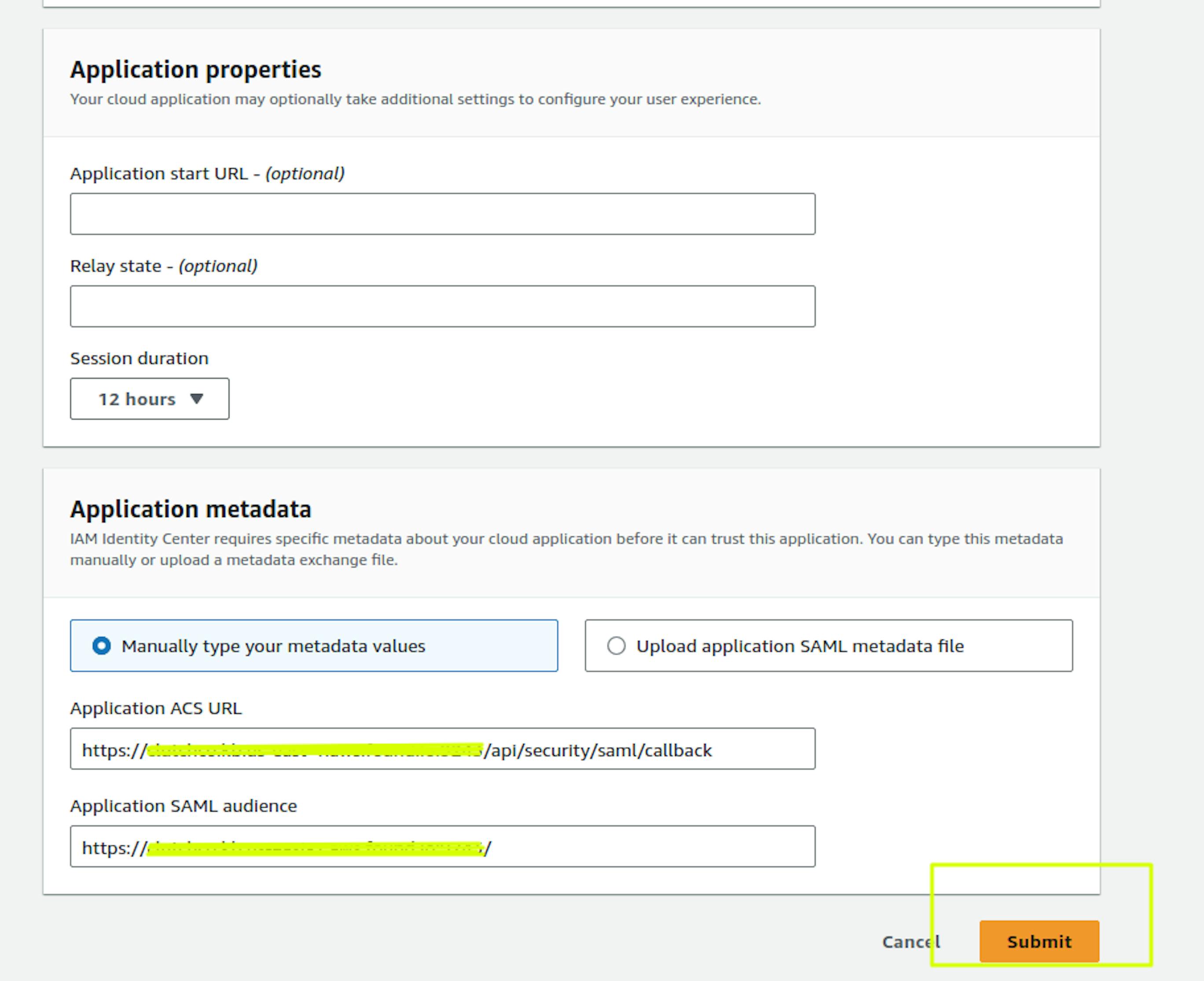
In "Application metadata," place https://<kibana_url>/api/security/saml/callback in the "Application ACS URL" field.
Place https://<kibana_url>/ in the "Application SAML audience" field and select Submit
Next, in the same configuration, you need to configure Attribute Mapping. IAM Identity Center uses these user attributes to populate SAML assertions (as SAML attributes) sent to the application. You can find more details in the documentation: https://docs.aws.amazon.com/singlesignon/latest/userguide/attributemappingsconcept.html
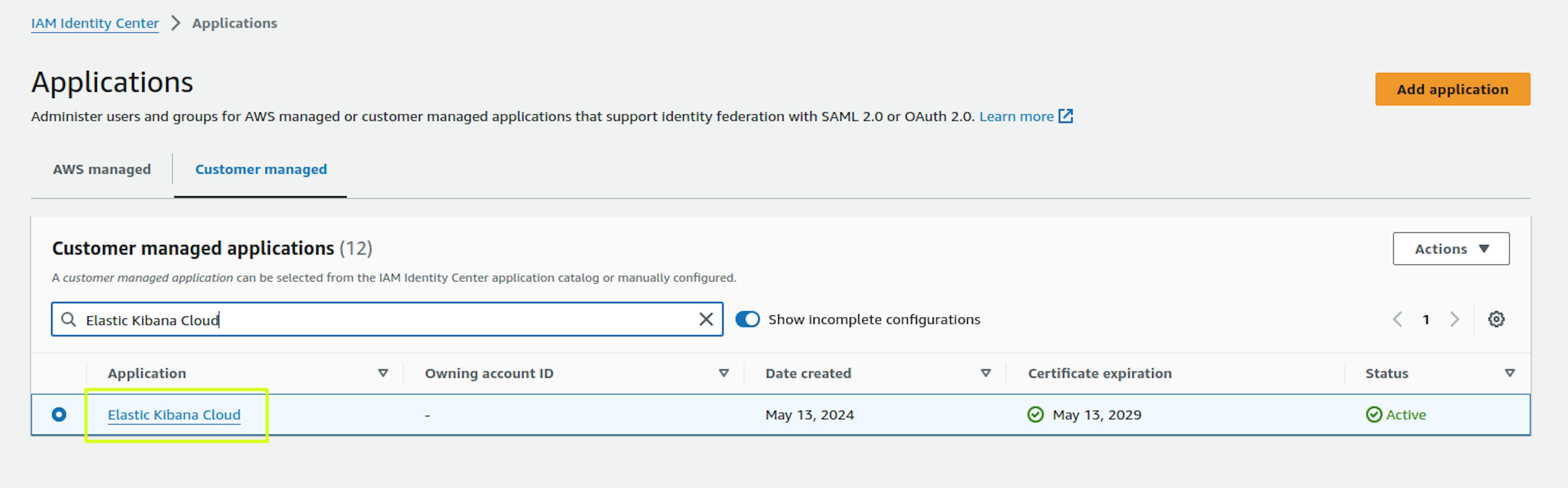
To configure Attribute Mapping, go to the Application you created:
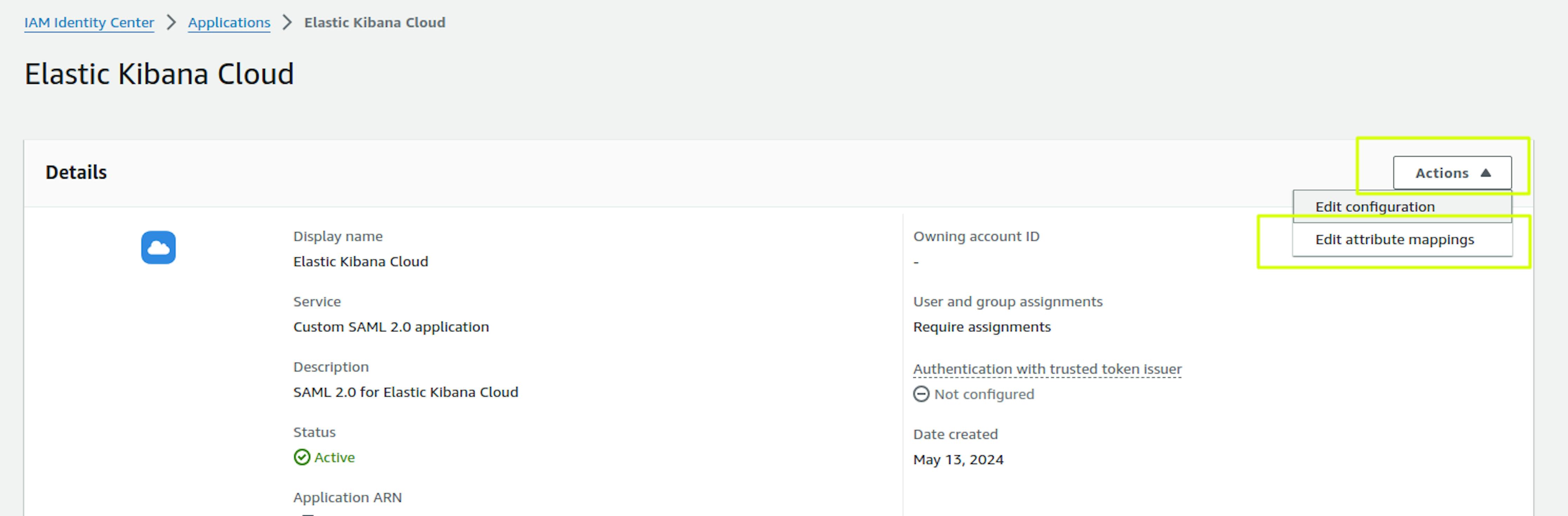
Select Action -> Edit Attribute Mapping:
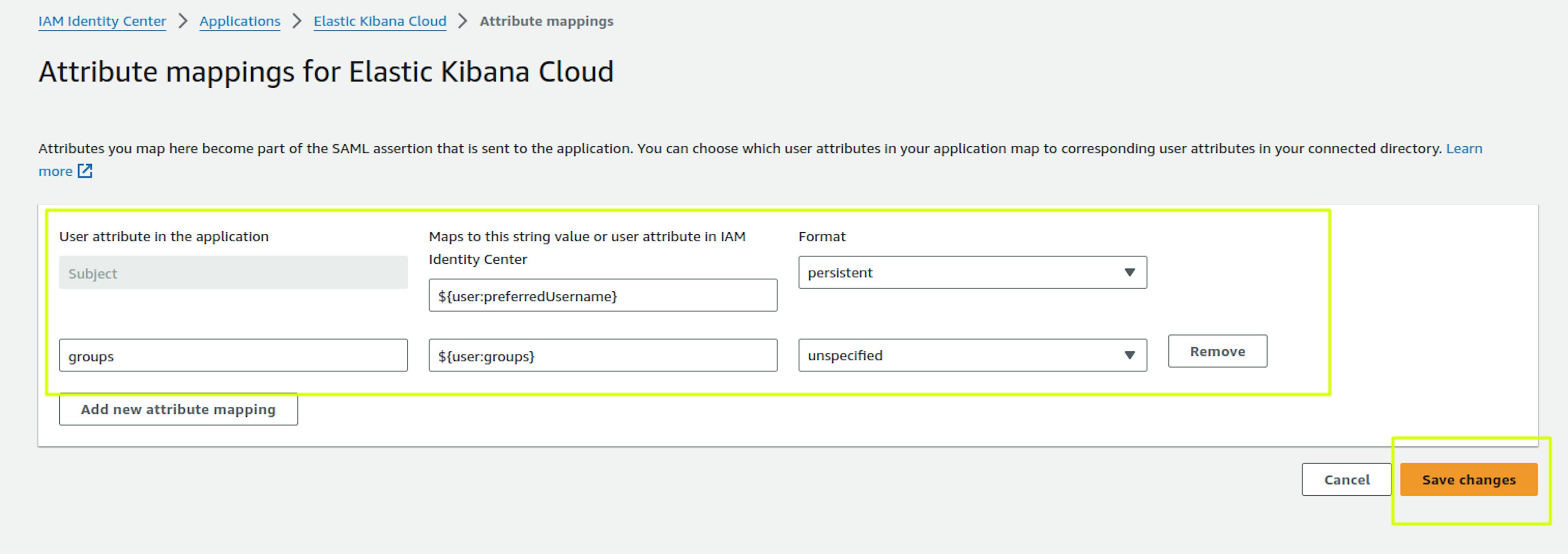
Since we plan to differentiate permissions by user groups in Kibana, the 2 attributes shown in the screenshot will be enough. Save changes.
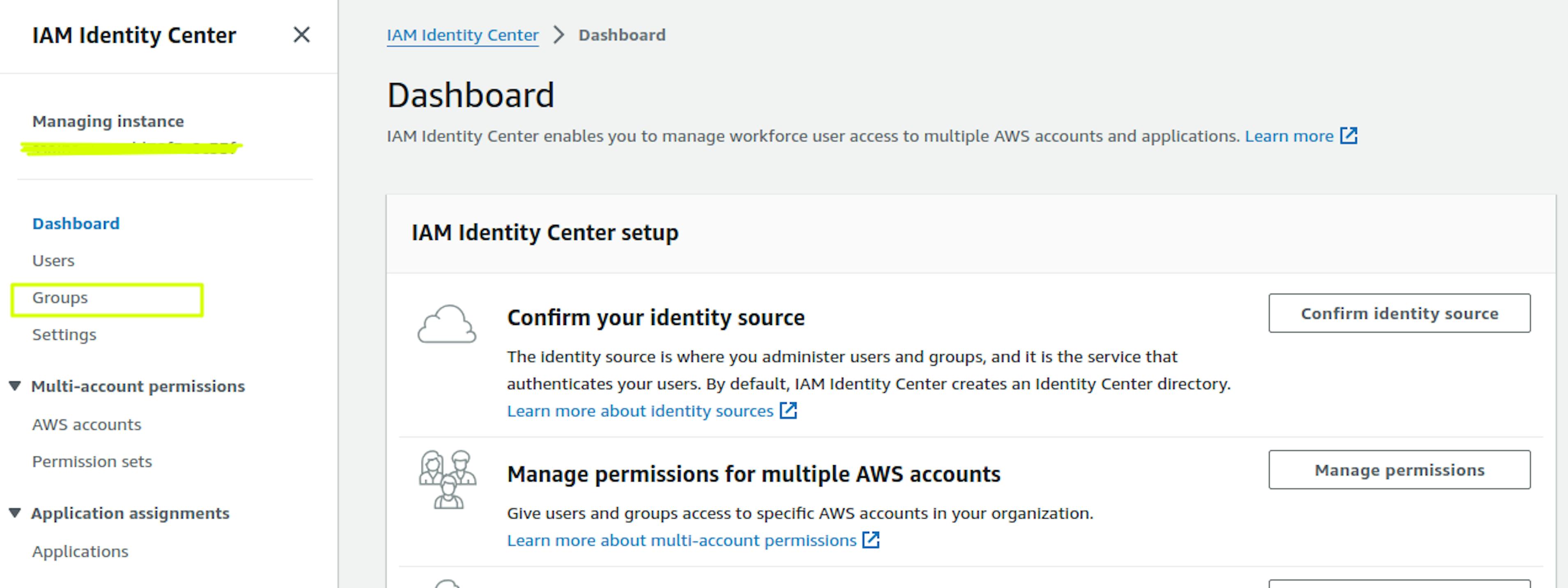
Let's immediately create several user groups in the IAM Identity Center:
Kibana_admins and Kibana_developers. To do this, go to the Groups -> Create group section in the IAM Identity Center. We set the Group name and Description and can immediately add users to the group.

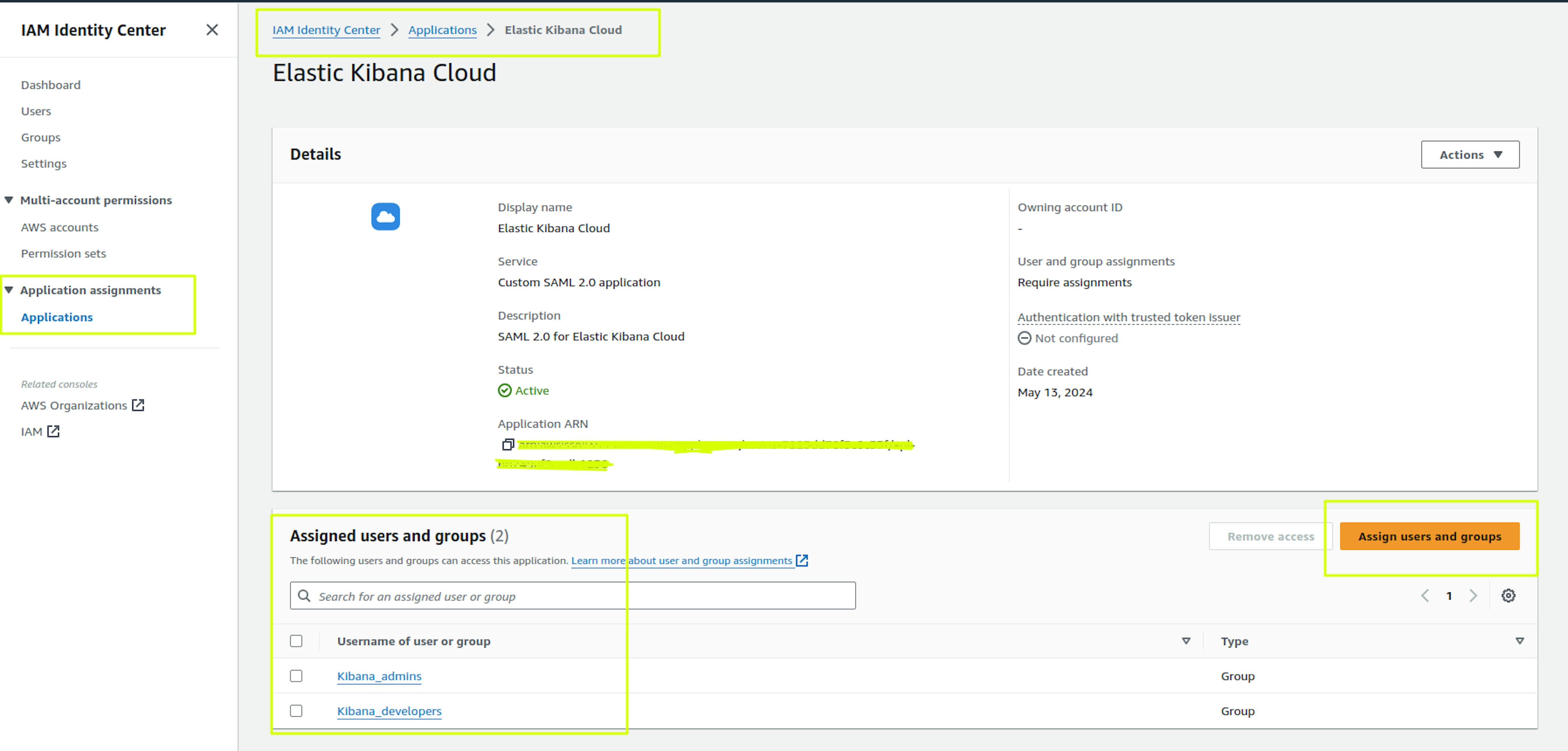
We return to the settings of our Application and assign the created groups:
2. Elasticsearch and Kibana SAML configuration in Elastic Cloud
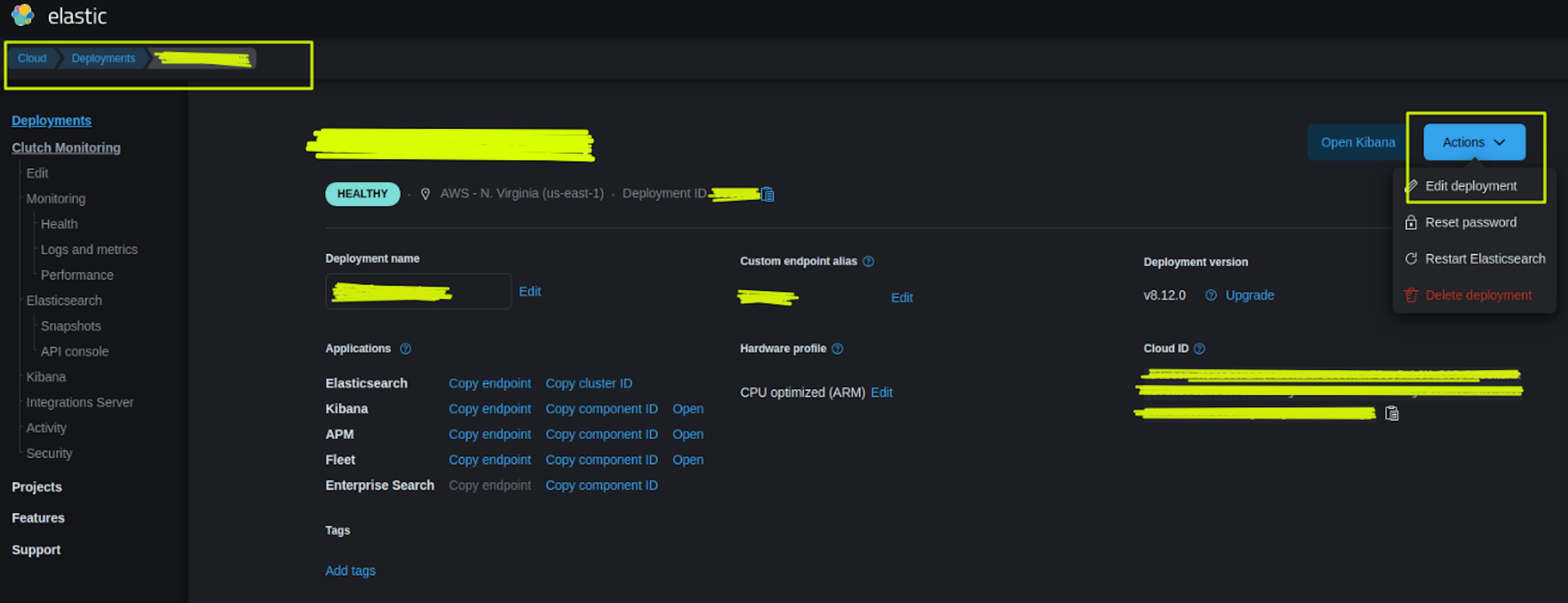
Go to https://www.elastic.co/cloud in the Deployment -> Actions -> Edit Deployment section:
Select "Manage user settings and extensions (0)" in the ElasticSearch settings section:
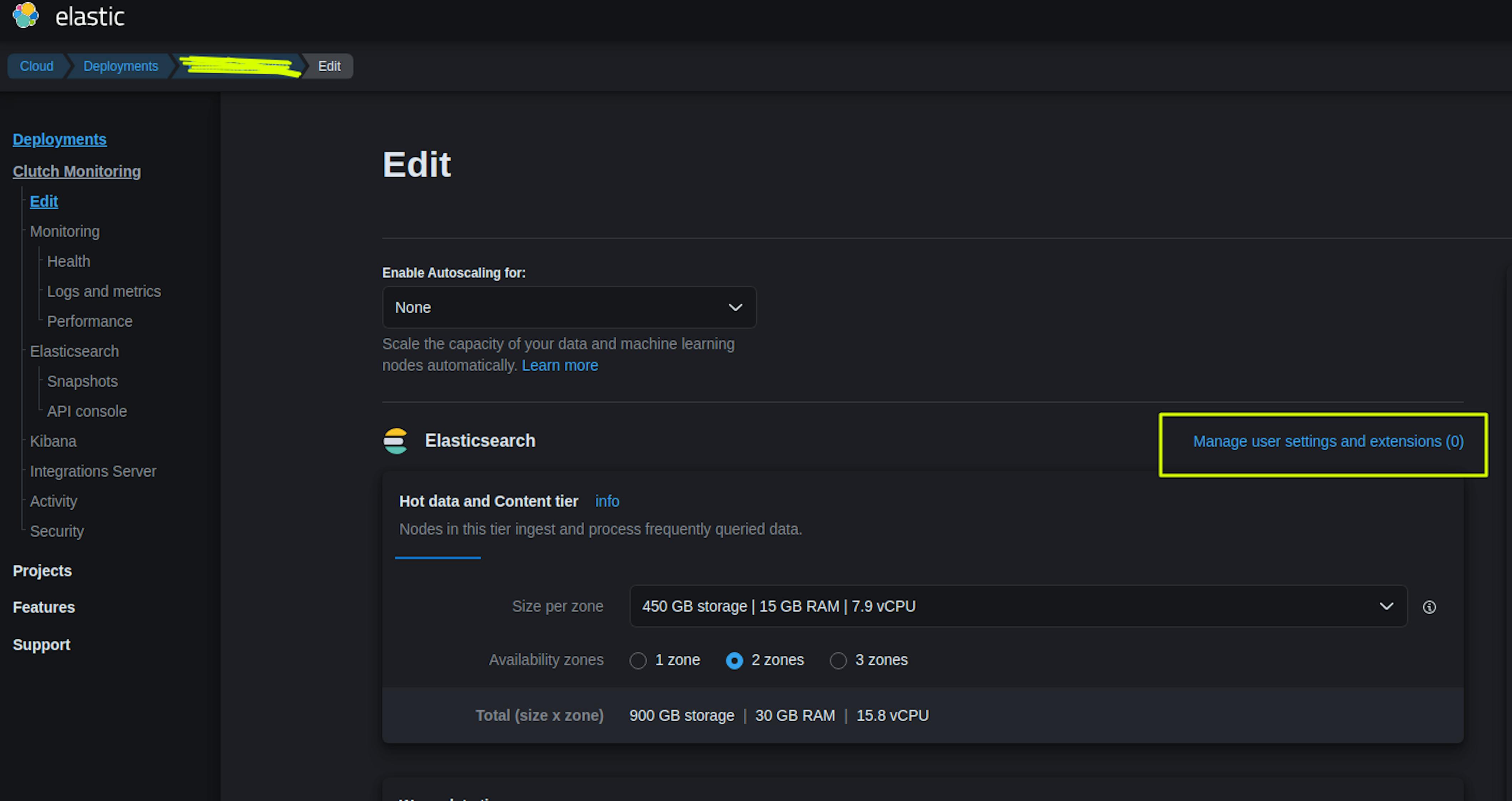
Adding the configuration:
xpack:
   security:
	 authc:
	   realms:
	     saml:
	       saml-realm-name:
	         order: 2
	         attributes.principal: "nameid"
	         attributes.groups: "groups"
	         idp.metadata.path: "https://portal.sso.us-east-1.amazonaws.com/saml/metadata/XXXXXX"
	         idp.entity_id: "https://portal.sso.us-east-1.amazonaws.com/saml/assertion/XXXXXX"
	         sp.entity_id: "https://<kibana_url>/"
	         sp.acs: "https://<kibana_url>/api/security/saml/callback"
	         sp.logout: "https://<kibana_url>/logout"
You can get the idp.metadata.path and idp.entity_id values in the previously prepared Application in the IAM Identity Center metadata section.
Select "Back" and go to the Kibana configuration.
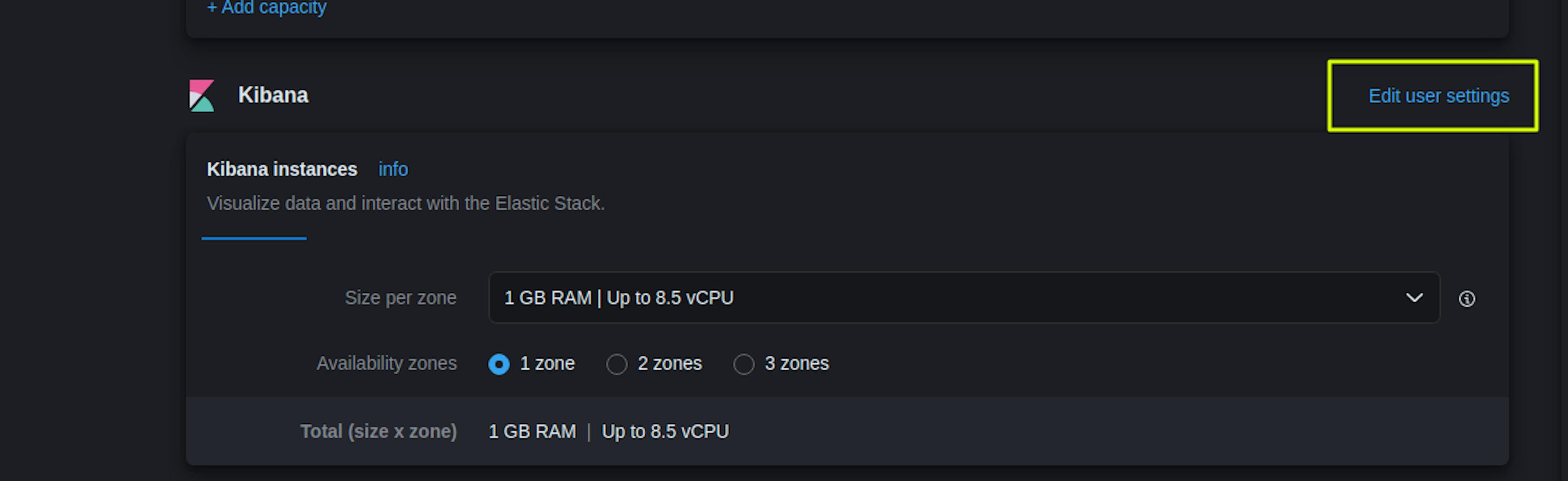
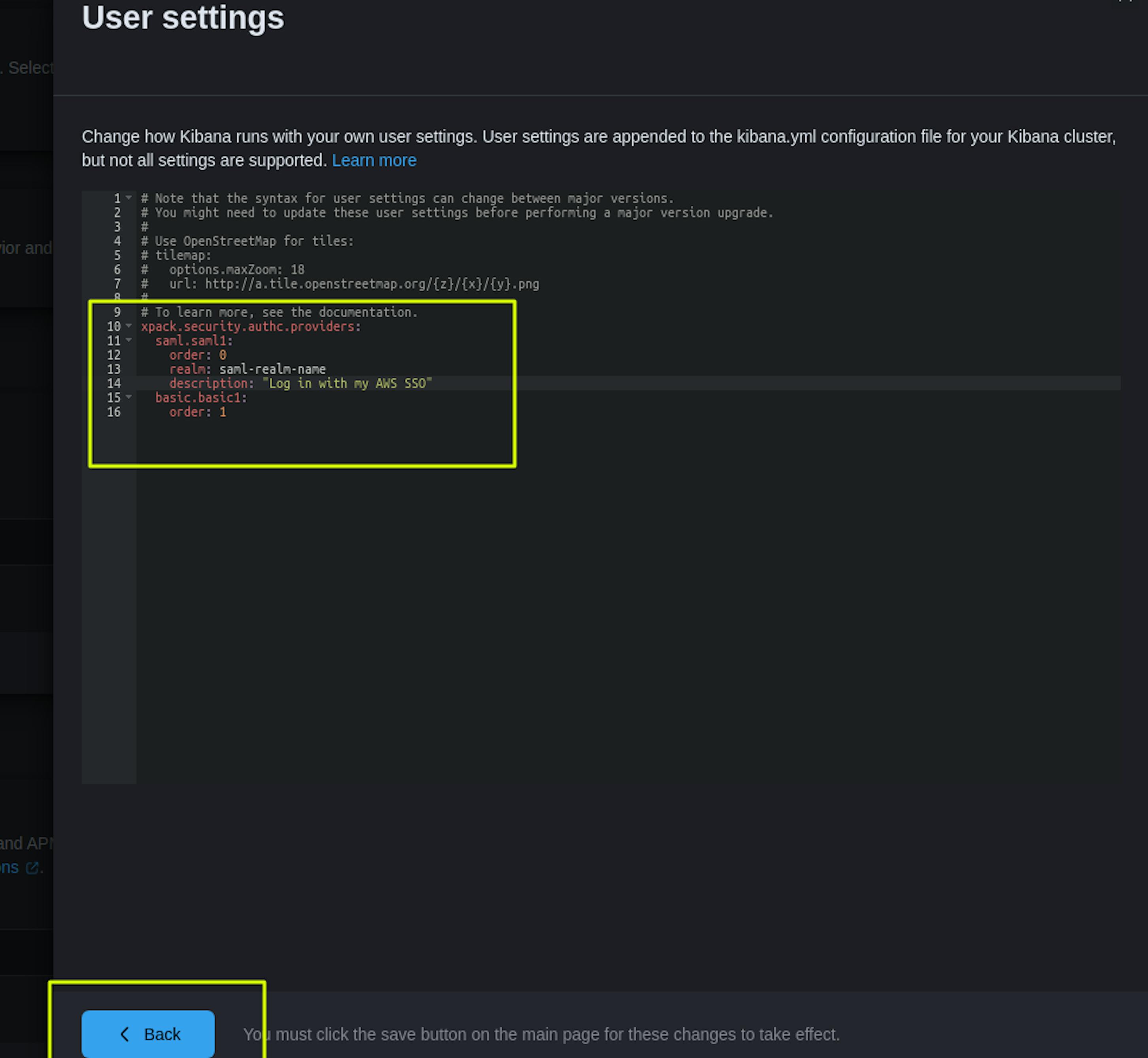
xpack.security.authc.providers:
  saml.saml1:
    order: 0
    realm: saml-realm-name
    description: "Log in with my AWS SSO"
  basic.basic1:
    order: 1
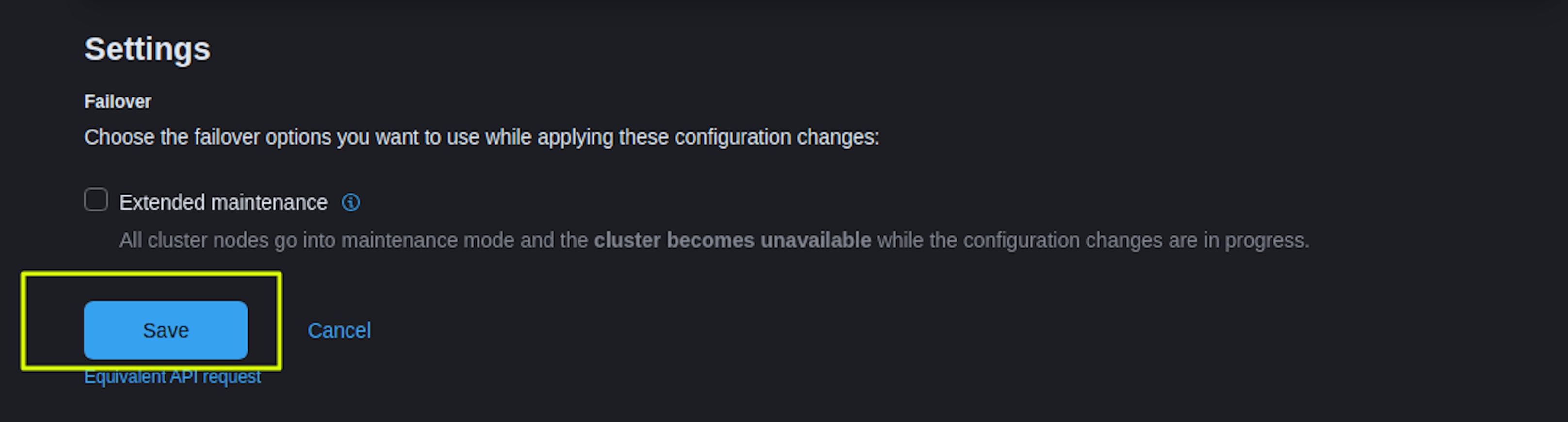
After adding the Kibana settings, select "Save," after which we confirm that we want to apply this configuration. We wait for the settings to be applied within 15-30 minutes.
You can find more detailed settings in the documentation: https://www.elastic.co/guide/en/cloud/current/ec-securing-clusters-SAML.html
Next, we configure "Map Roles" at the Kibana level.
Go to the Kibana web interface in the section Management -> Stack Management -> Security -> Create Role Mapping.
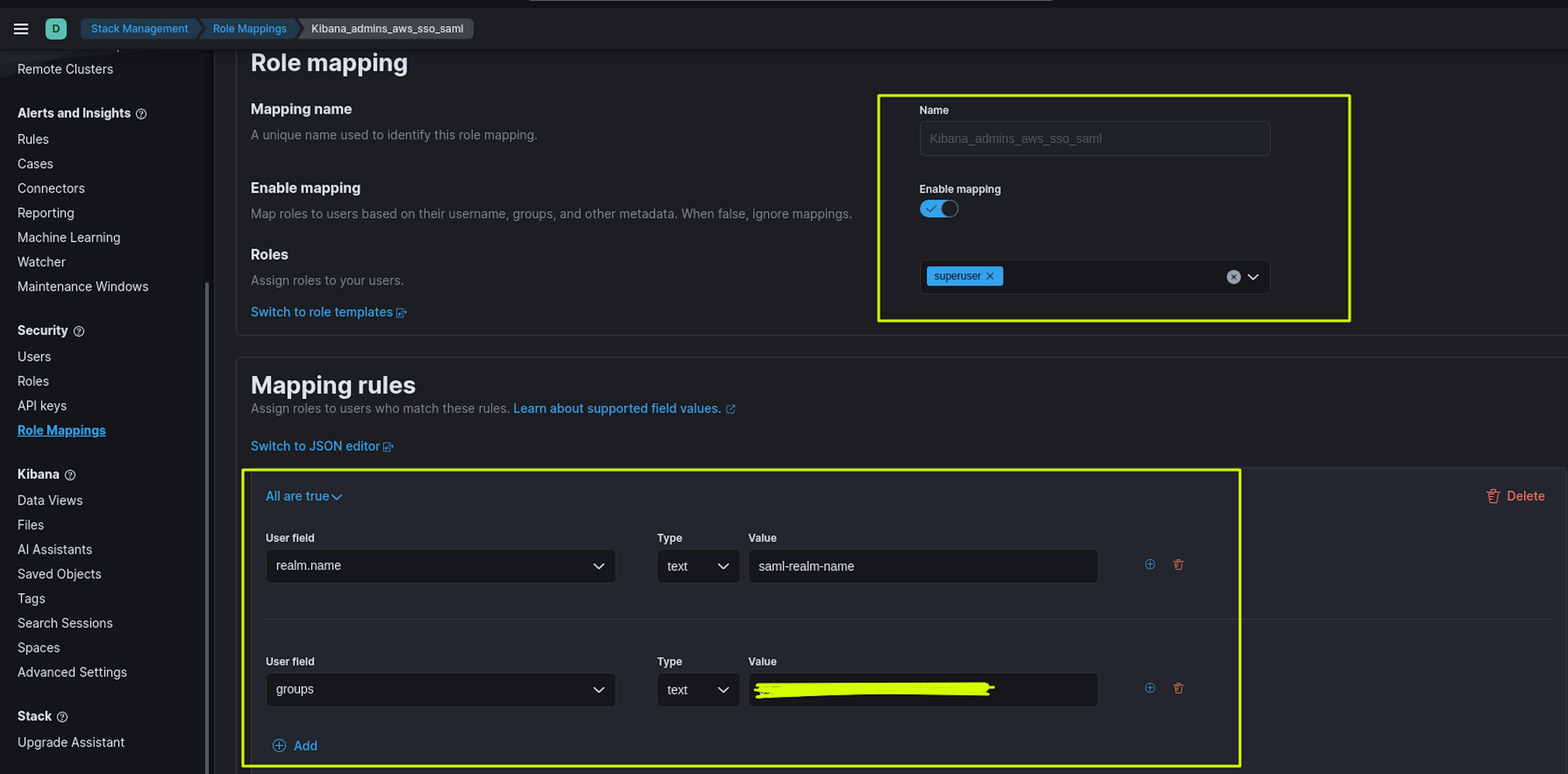
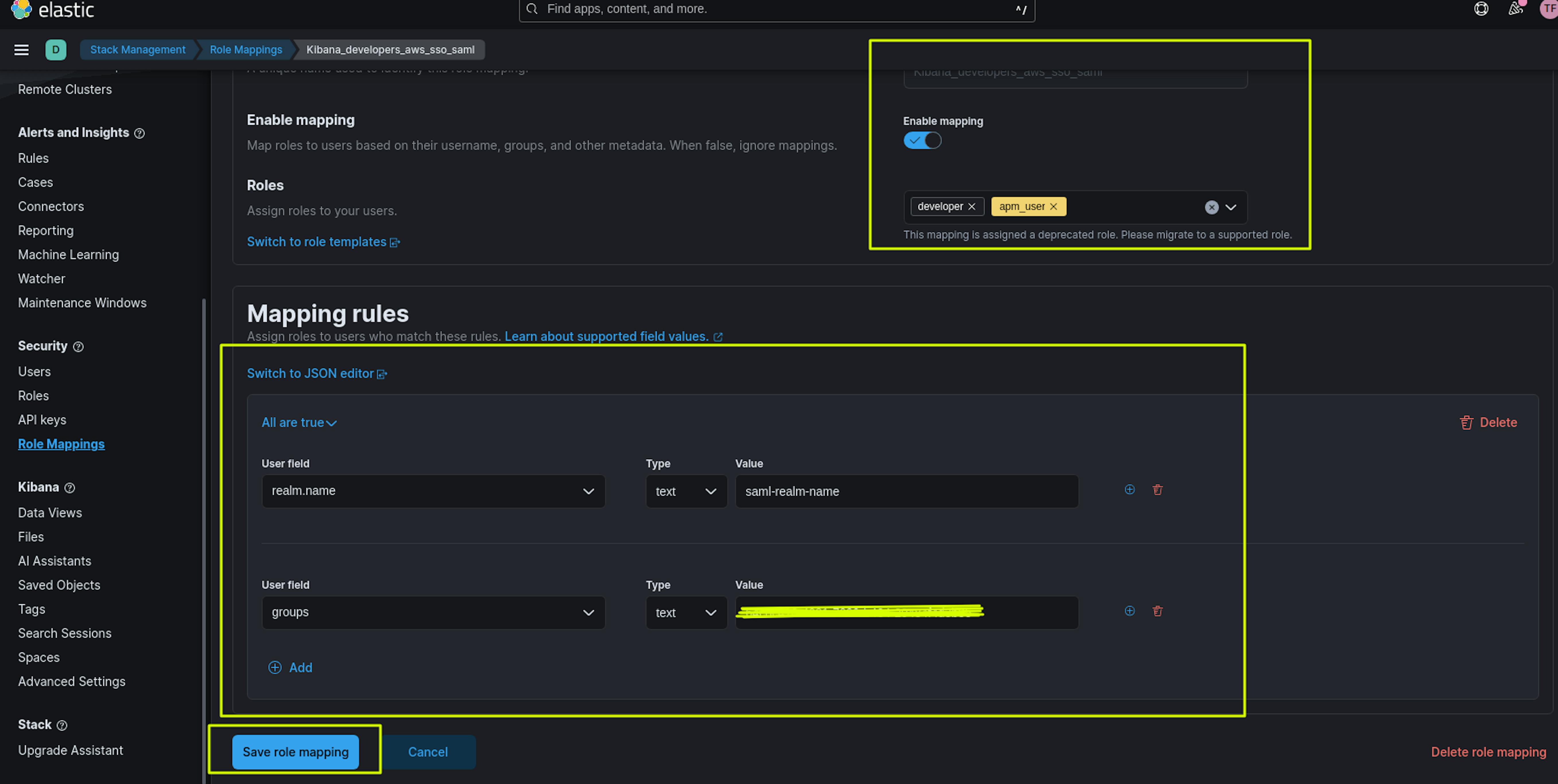
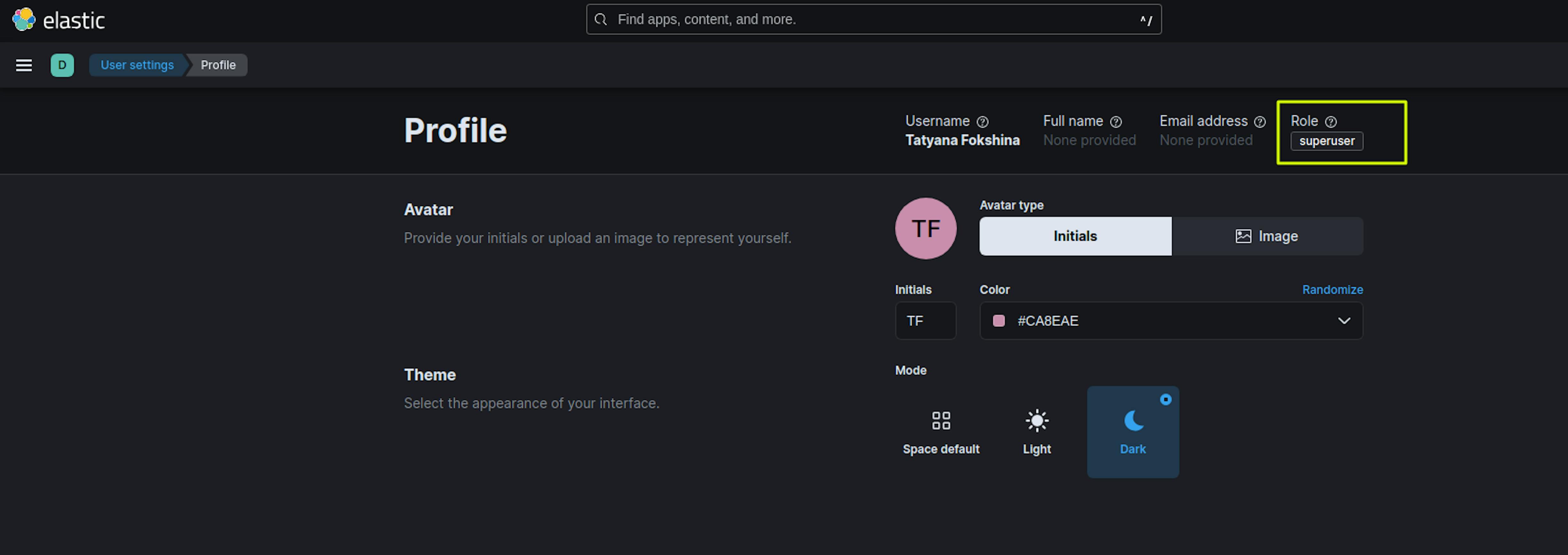
The screenshots above show the creation of 2 Maps Roles: Kibana_developers_aws_sso_saml and Kibana_admins_aws_sso_saml.
The name of the Maps Role can be anything. In the Roles section, we set roles with the necessary rights for users, for example, for Kibana_admins_aws_sso_saml - the superuser role, for Kibana_developers_aws_sso_saml the developer, apm_user roles.
In the Mapping rules section, the User field "realm.name" must match the saml-realm-name.
The User field "Groups" must match the user group ID in the AWS Identity Center. You can find this in AWS Identity Center ->Groups -> Select the desired group -> Copy Group ID in the General Information section.
After applying all the specified settings, you can proceed to testing.
When we open the Kibana start page, we see a new login item.
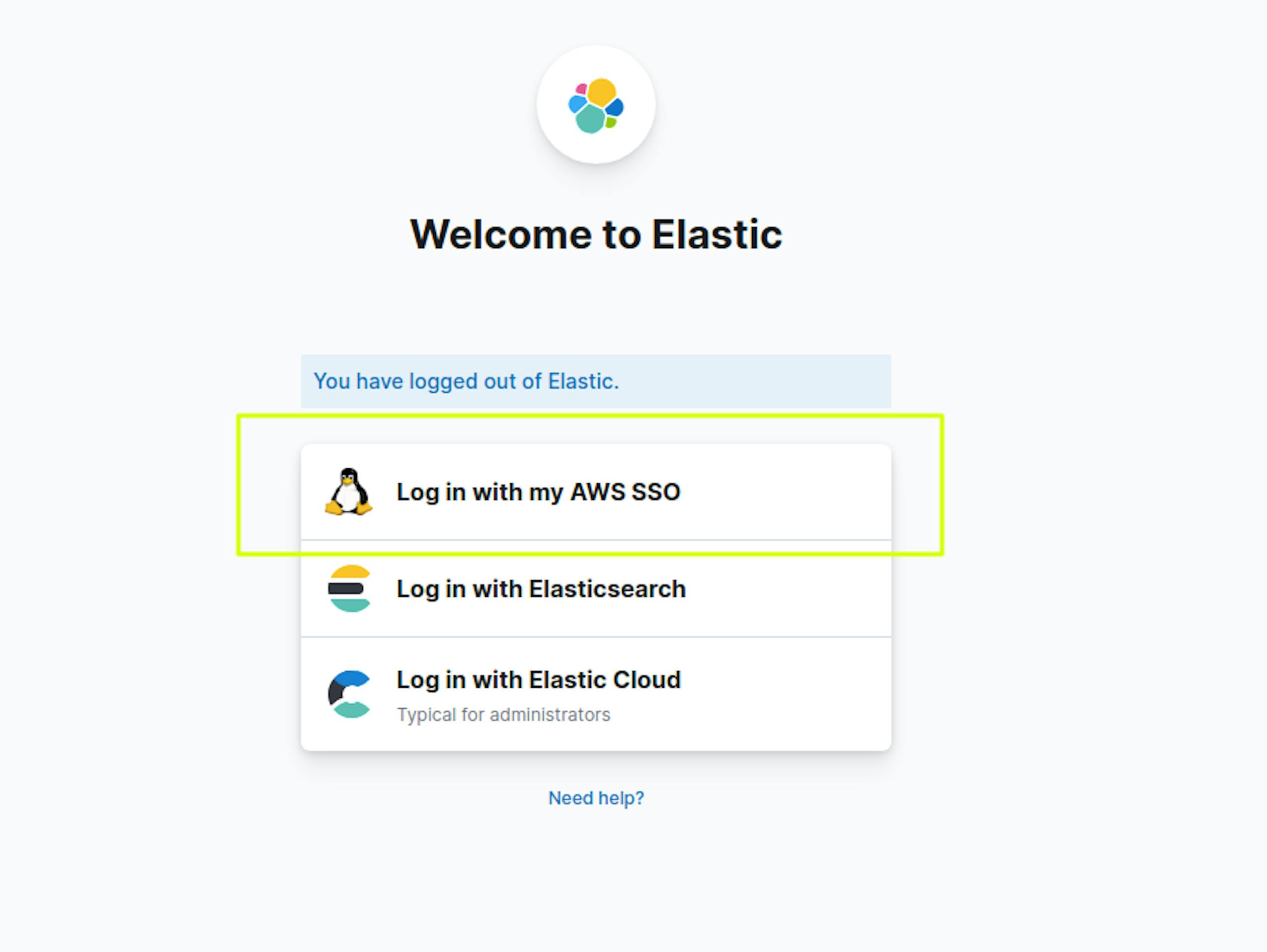
When authorizing via AWS SSO in Kibana, the user will have access to the rights granted in "Role Mapping."